Welcome to MedStudy's Online Q&A and Flash Card Editor
Here you are able to enter NEW Q&As and/or Flash Cards.A. Logging in and navigating to the Q&A submittal page
1. Go to my.medstudy.com
2. Log in using your email address and password; if you have forgotten your password, click I forgot my password. This will open up a Password Recovery page.

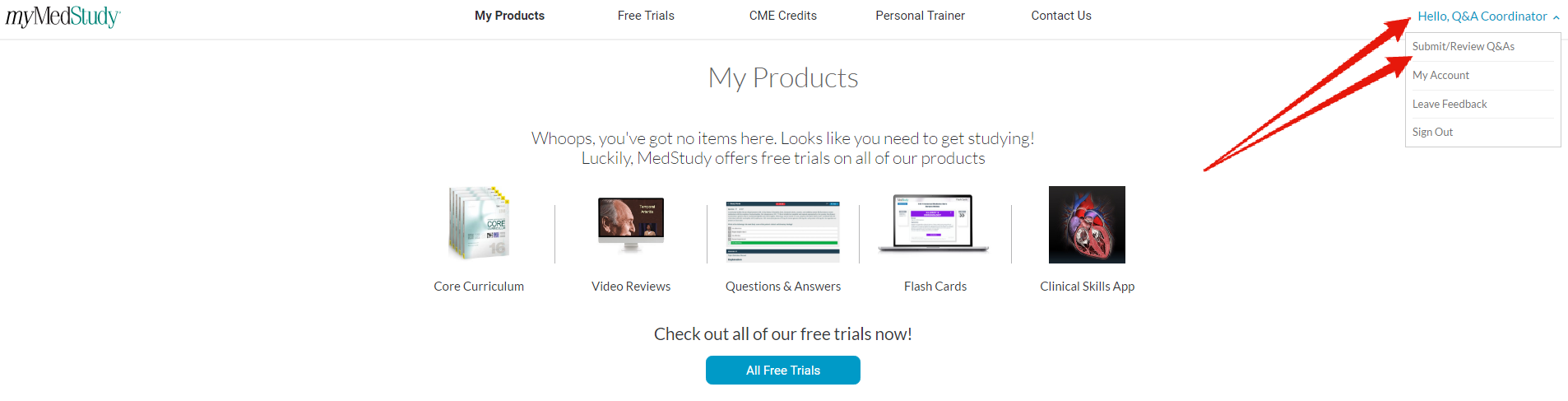
3. On the top right side of the page, click Hello, [your name] to display a drop-down selection; then, select Submit / Review Q&As.
4. Under New Q&As / Flash Cards, click on the blue button labeled Your questions.

5. You will be taken to a new page that will show you a list of new Q&As (Drafts) you will now need to add content into.

To start entering content, simply click on a Draft Q&A. This will open up a blank Q&A for you enter content into.

2. Log in using your email address and password; if you have forgotten your password, click I forgot my password. This will open up a Password Recovery page.
3. On the top right side of the page, click Hello, [your name] to display a drop-down selection; then, select Submit / Review Q&As.
4. Under New Q&As / Flash Cards, click on the blue button labeled Your questions.
5. You will be taken to a new page that will show you a list of new Q&As (Drafts) you will now need to add content into.
To start entering content, simply click on a Draft Q&A. This will open up a blank Q&A for you enter content into.
B. Entering the elements of your new Q&A
1. Before you start writing, know the topic and subtopic your Q&A relates to.
At the top of the Q&A, you can see the topic and subtopics this Q&A relates to (circled in red).
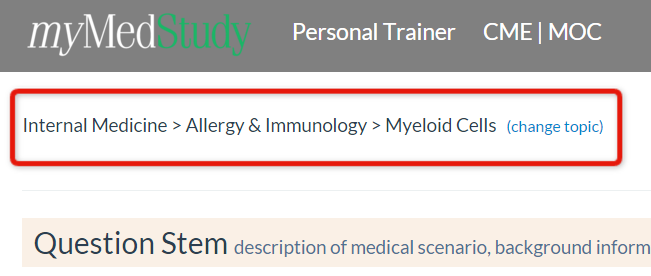
At the top of the Q&A, you can see the topic and subtopics this Q&A relates to (circled in red).
2. Ensure you are creating unique questions on medical content that has not previously been covered. To the right of the topic and subtopics, click on (change topic).

This will open up a drop-down selection of topics and subtopics. To the right of the topic/subtopics, you will see (view xx existing), which shows the number of Q&As that already exist in this topic or subtopic. Click this link to be taken to a new page where you can browse all existing questions in the myMedStudy system that relate to that specialty and topic.
3. Enter content in all sections listed below. (Detailed instructions and useful tools on how to write a high-quality Q&A are located in the MedStudy Q&A Writer Specifications.) You must read and follow the instructions carefully before you start writing to avoid Q&As being returned to you for editing by reviewers or copyeditors!
This will open up a drop-down selection of topics and subtopics. To the right of the topic/subtopics, you will see (view xx existing), which shows the number of Q&As that already exist in this topic or subtopic. Click this link to be taken to a new page where you can browse all existing questions in the myMedStudy system that relate to that specialty and topic.
3. Enter content in all sections listed below. (Detailed instructions and useful tools on how to write a high-quality Q&A are located in the MedStudy Q&A Writer Specifications.) You must read and follow the instructions carefully before you start writing to avoid Q&As being returned to you for editing by reviewers or copyeditors!
- Question Stem (description of medical scenario, background information, history of previous illness)
- Question
- Answers (You must enter 5 answer options and select the checkbox to mark the correct answer.)
- Explanation
- Board Testing Point
4. Saving and Saving & Closing
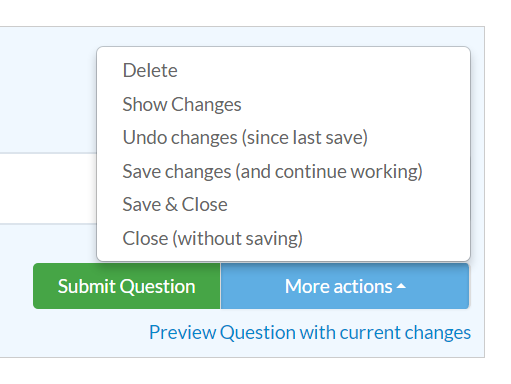
Scroll to the bottom of the page and click on More actions. This will open up various options for you to choose from. The most important ones are:- Save - You want to save your work to protect from accidental deletion but continue working.
- Save & Close - You want to save your question to continue at a later time. You will be redirected to the main question submission page to add or continue a question.
5. Submitting your Q&A
Next to the More actions menu, you can find the green Submit Question button. Please click on Submit Question when your question is complete and you'd like to submit it for review.
Next to the More actions menu, you can find the green Submit Question button. Please click on Submit Question when your question is complete and you'd like to submit it for review.
D. Continue working on a Q&A draft (previously saved & closed)
2. Click the blue button labeled Your questions.
This will take you to your list of draft Q&As that you haven't submitted yet. The draft Q&As are sorted in order of question ID number.

3. Click on the question to open it.
4. Save, Save & Close, and/or Submit your Q&A as described above.
E. After you submit your Q&A
1. Finding the comments. You will be able to find their comments in the comment sections within your Q&A. Please check each section for comments and be sure to address all questions/comments that were left for you before resubmitting your Q&A.

2. Responding to comments. You may also leave response comments for reviewers/medical editors/copyeditors here. Simply click on the grey Add comment tab.
3. When you are finished, click Submit Question again.
Note: Because we're ensuring our customers only the highest quality, we have developed a vigorous and extensive review process. Hence, it can take 3-4 months before the Q&A process is completed.

No comments:
Post a Comment