WELCOME!
Welcome to MedStudy’s Online Q&A Editor. This is where you enter new Q&A’s.A. Log in and Navigate the Dashboard
1. Go to my.medstudy.com.2. Log in using your email address and password.

- If you have forgotten your password, click “Forgot password?” This opens the Password Recovery page.

3. Once logged in, click “Hello, [your name]” (on the top right of the page) to display the dropdown menu. Next select “Submit/Review Q&As” to be directed to your dashboard.

The main dashboard gives you access to your Q&A's as well as accompanying resources to help you navigate the online system and write effective Q&A's. Become familiar with these resources and reference them throughout the Q&A writing process.

4. Under “New Q&As / Flash Cards,” click the blue button labeled “Your questions.”

5. You should now see a list of Q&A Drafts in which you will create your Q&A's.
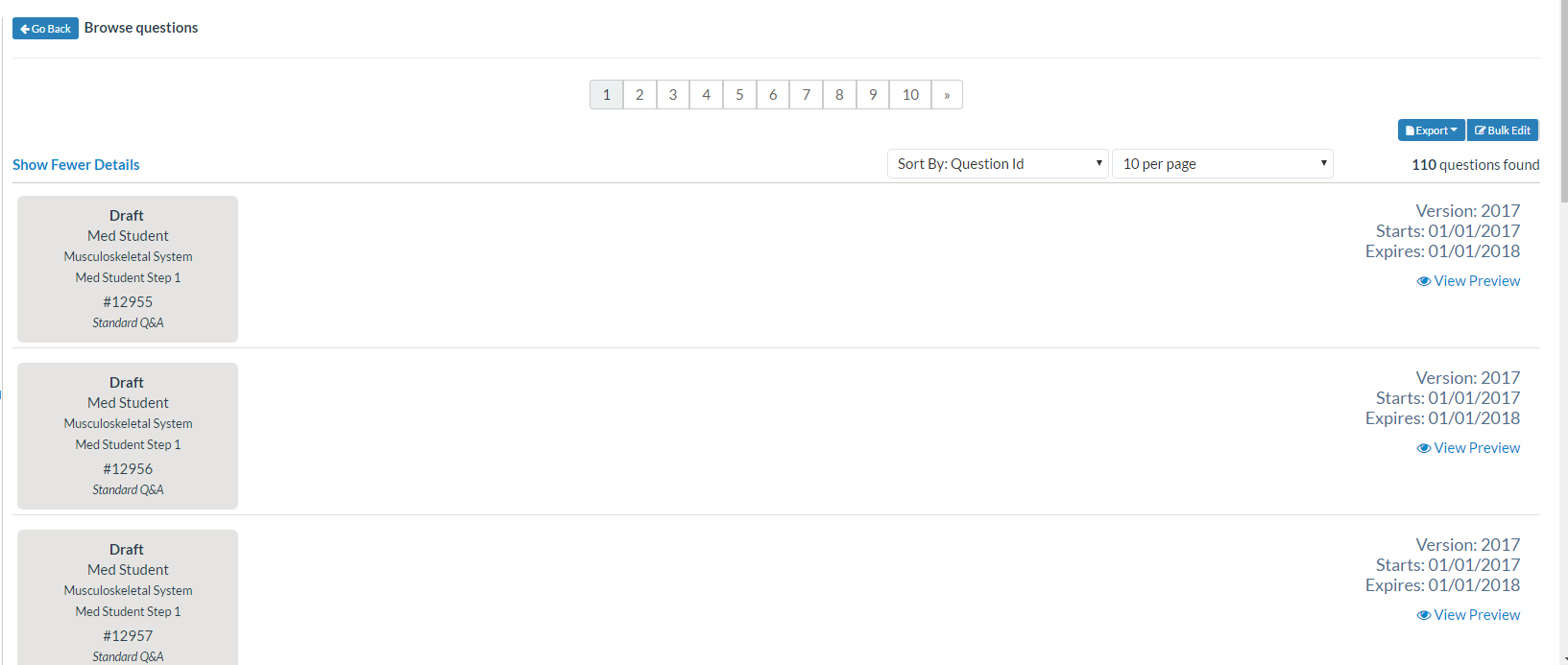
6. To access the Draft, simply click on the gray box and the Q&A will open, displaying all of the fields.

B. Categorizing the Q&A
Use the dropdown menu to categorize the Q&A. *The Q&A must be categorized in order to submit it.*1. At the top (left) of the Q&A, the topic is displayed. In this example, the topic is “Immune System.”
Click the blue "change topic" icon ...

... This will open dropdown menus that correspond with the topic headings in your Student Core section content, allowing you to indicate where the material in the Q&A is found within the section content. You must drill down to the most specific topic heading possible.
2. Select the first topic heading for your Q&A. Once you make your selection, another dropdown menu appears and allows you to continue selecting topic headings until you have categorized your Q&A to the lowest subtopic possible.


When you have categorized the question as far down in the topic headings as appropriate, a green icon labeled “Select this topic” will appear to the right of the last dropdown menu. Click the button to complete the categorization.

Example of completed the categorization:


3. The Sub Specialty has already been assigned. Do not change the Sub Specialty.

C. Tour the Toolbar
When you click in any of the fields in the Q&A, the toolbar will appear above the field you are working in.

The toolbar enables you to write and edit in each of the fields, insert symbols, and insert and format tables.
Symbols
To access the symbols menu, select the "Insert" tab and click on the symbol icon:
The symbols menu appears for you to select and insert what is needed in the field, including "curly" apostrophe, quotation marks, and mathematical symbols such as greater than, greater than or equal to, less than, and less than or equal to.

Tables
To create a table, select the "Insert" tab and the table icon:

You then indicate the number of rows and columns, as well as create a heading within the table. (Remember: You can refer to the CMS Navigation video (link) for a refresher on the visual instructions to create tables within your Q&A's.)


D. Enter the Content
Refer to the detailed instructions and examples on how to write a high-quality Q&A in the Student Core Q&A Writer Specifications and Examples (Step 1 - update link) document. Enter content in all sections provided in the Q&A Draft:- Question Stem (description of medical scenario, labs, background information, history of previous illness, physical examination findings)
- Question
- Answers (Each question must have 1 correct answer and at least 4 distractors. Most questions will have 5–10 answer options. Indicate the correct answer option by clicking on the corresponding bubble. Add more distractor fields as needed by clicking on the "Add Answer Option" button.)

- Explanation (Make sure to include an Explanation for each distractor using the exact phrasing presented in each answer option.)
- Testing Point (1–3 sentences)
E. "More Actions" and Submitting the Q&A
Scroll to the bottom of the page and click on “More actions.” This opens various options to choose from.
- "Save changes (and continue working)" — Save your work to protect from accidental deletion and continue working.
- "Save & Close" — Save your question and continue working later. You will be redirected to the main question submission page to add or continue a question.
Save Changes (and Continue Working)
At any point while you are working in the Q&A template you can save your work by selecting this option.Save & Close
If you choose to "Save & Close" a Q&A you are working on and return to it later, you can access the Q&A again by using the following steps:1. Once you are logged in, click “Hello, (your name)” in the header at the top of the page to display the dropdown menu, then select “Submit/Review Q&As.”
2. Click the blue button labeled “Your questions.”


5. You can then either "Save Changes (and continue working)," "Save & Close" again, or "Submit" the Q&A.
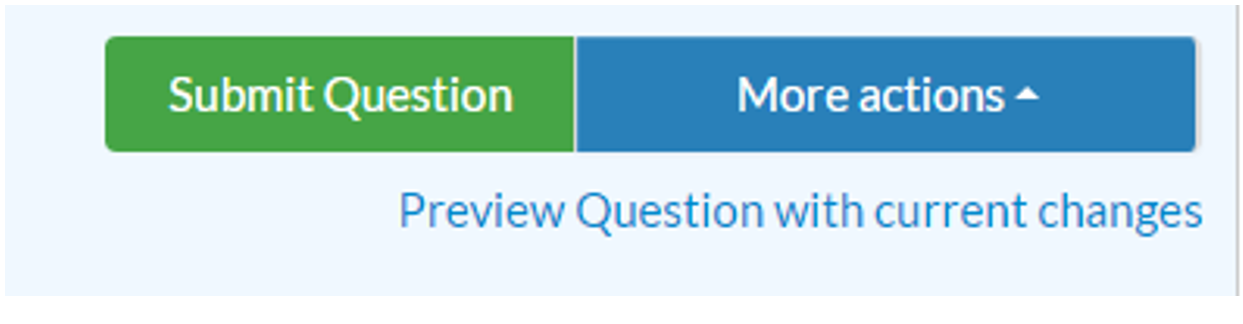
Preview and Submit the Q&A

This action opens a new window with the Q&A displayed as our customer sees it.

Select "View answer and explanation" to display the correct answer and the full explanation and testing point. If you find that you need to apply additional changes to the Q&A, simply close the preview window—the Q&A remains accessible and editable.
2. Now that you have completed and previewed the Q&A, you are ready to submit it for review.
Scroll down to the bottom of the template to the "Comments & Actions" field.

Type in the High-Yield Topic to which your Q&A corresponds. Be sure to use the same wording from the High-Yield Topic list you received via email.
You must add a note in this field to be able to submit the question. Example:

Most likely, you will receive questions and/or comments from the Reviewer, copyeditors, and Medical Editor. Please respond to all queries and make necessary revisions within the Q&A content in the time frame suggested to you.
Please note: If you requested figures, images, and/or graphs for your Q&A's, they most likely will not be available for you to view at the time you respond to the Reviewer's comments.
1. Find the comments. Comments are found and created above each field in the Q&A. Check each field for comments addressed to you.
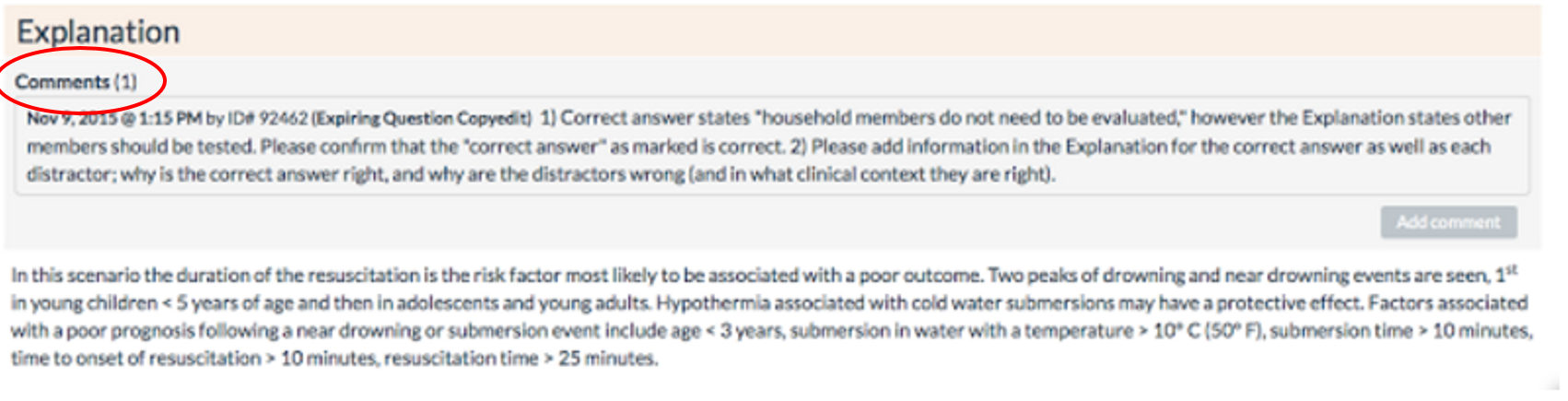
2. Edit the content accordingly and respond to comments. Before resubmitting the Q&A, be sure to address all questions/comments, either by making the suggested changes or revising the content based on the suggestions that are left for you. Additionally, respond and leave a comment when you make changes or revisions (e.g., "Done," "Revised," "Edited.").
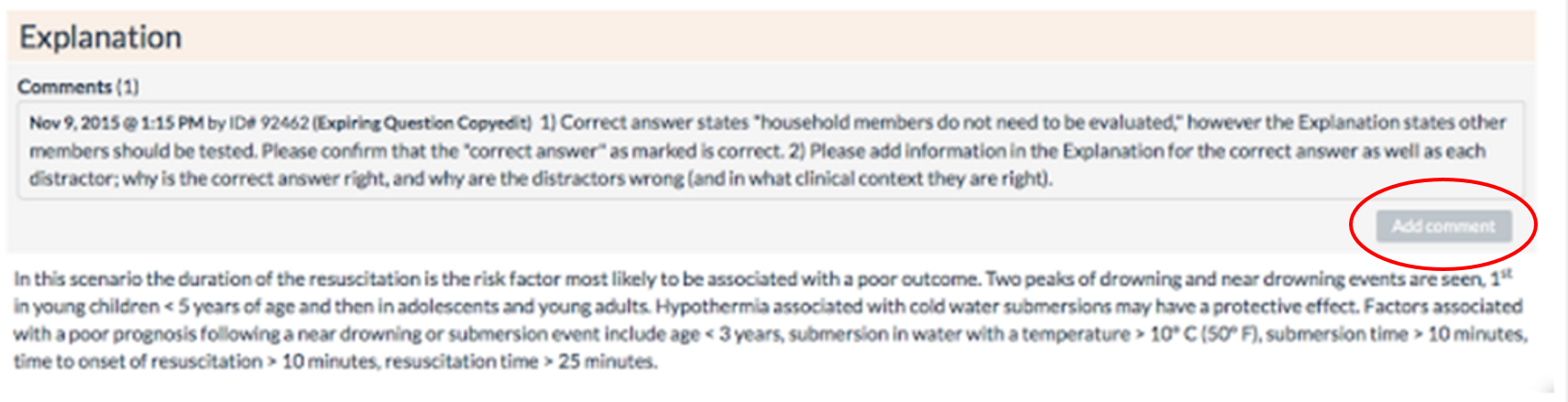
Simply click on the gray “Add comment” tab above each field.
2. Now that you have completed and previewed the Q&A, you are ready to submit it for review.
Scroll down to the bottom of the template to the "Comments & Actions" field.

Type in the High-Yield Topic to which your Q&A corresponds. Be sure to use the same wording from the High-Yield Topic list you received via email.
You must add a note in this field to be able to submit the question. Example:

F. What Happens Next?
After submitting your new Q&A’s, a reviewer, medical editor, and copyeditors review them. Watch your email for notifications about Q&A status. For details about the Q&A editing process, refer to the Student Core Writer Specifications (link).Most likely, you will receive questions and/or comments from the Reviewer, copyeditors, and Medical Editor. Please respond to all queries and make necessary revisions within the Q&A content in the time frame suggested to you.
Please note: If you requested figures, images, and/or graphs for your Q&A's, they most likely will not be available for you to view at the time you respond to the Reviewer's comments.
1. Find the comments. Comments are found and created above each field in the Q&A. Check each field for comments addressed to you.
Simply click on the gray “Add comment” tab above each field.
3. Resubmit the question. Use the "Preview Question with current changes" feature as often as you need while making your changes. When you are ready, click “Submit Question” again.
