WELCOME
Welcome to MedStudy’s Online Q&A Editor. Here you will complete an intital review of new Q&A’s.
A. Logging in and Navigating to the Reviewer Page
1. Go to mymedstudy.com.
2. Log in using your email address and password.


- If you have forgotten your password, click “Forgot password?” This opens the Password Recovery page.
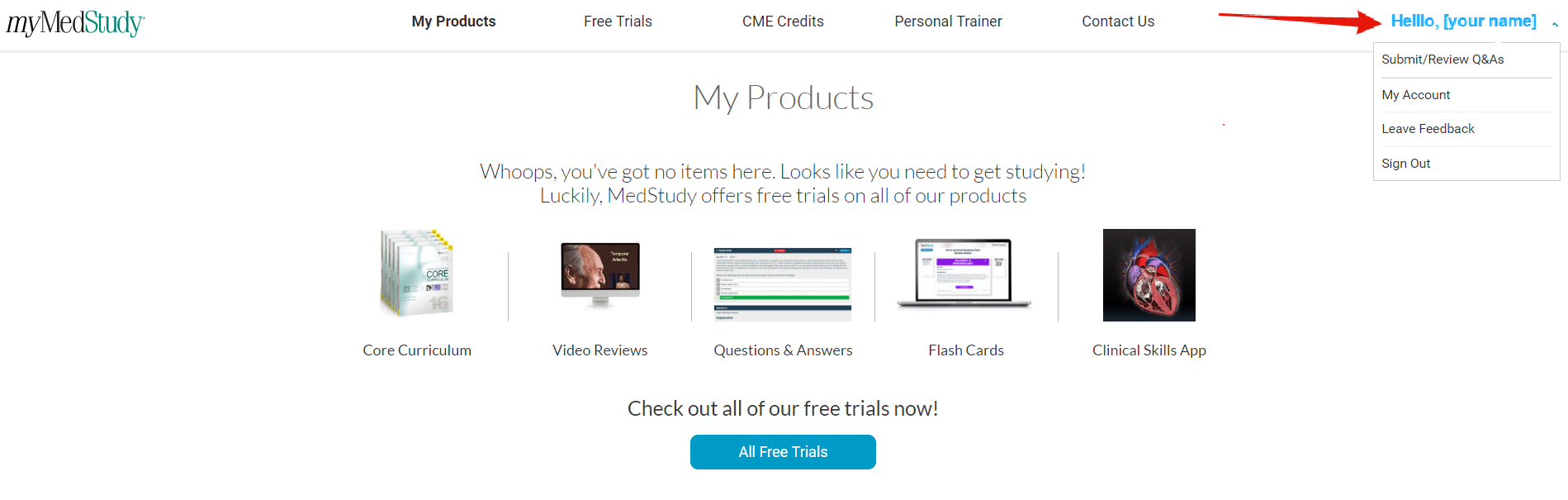
3. Once logged in, click on your name at the top right of the screen to access the drop-down menu and select “Submit/Review Q&As.”
B. Finding a Q&A to Review
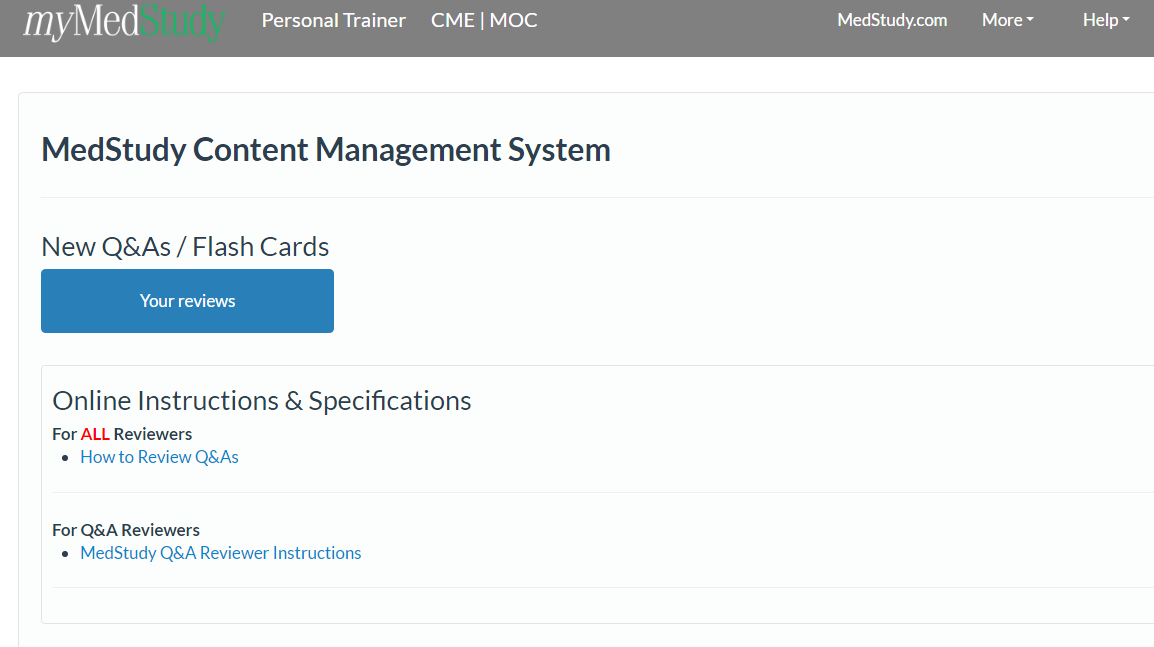
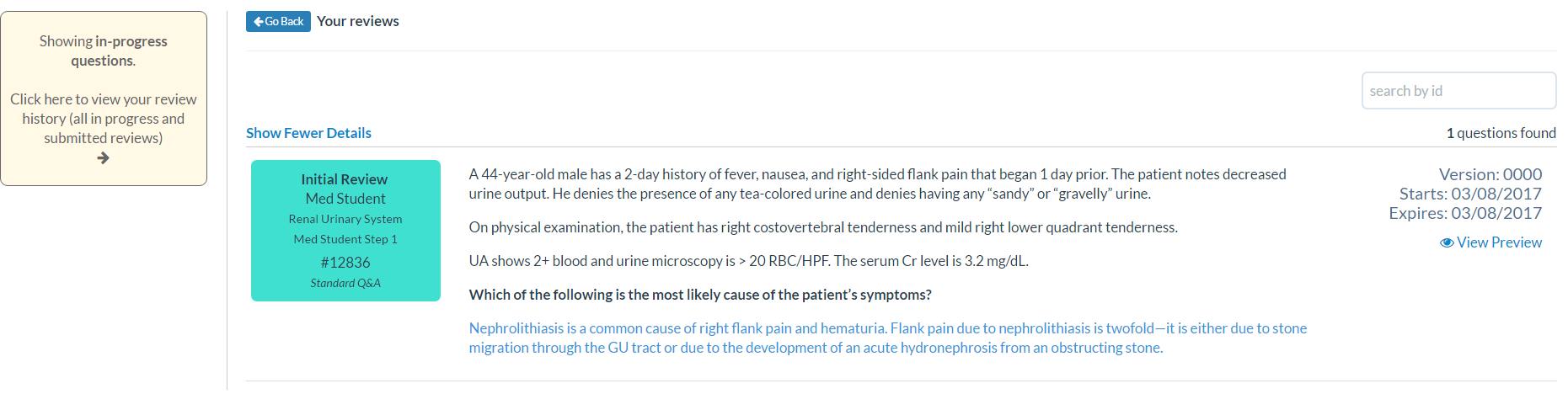
1. Under “New Q&As / Flash Cards,” click the blue button labeled “Your reviews” to open up a list of new Q&A’s assigned to you for review.
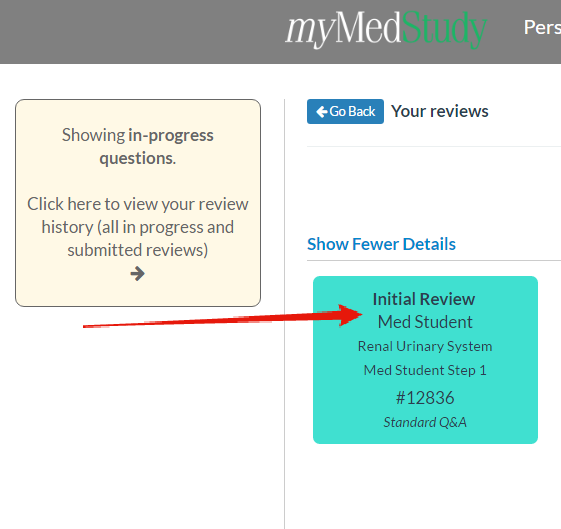
2. Click on a Q&A labeled Initial Review.
C. Reviewing a Q&A
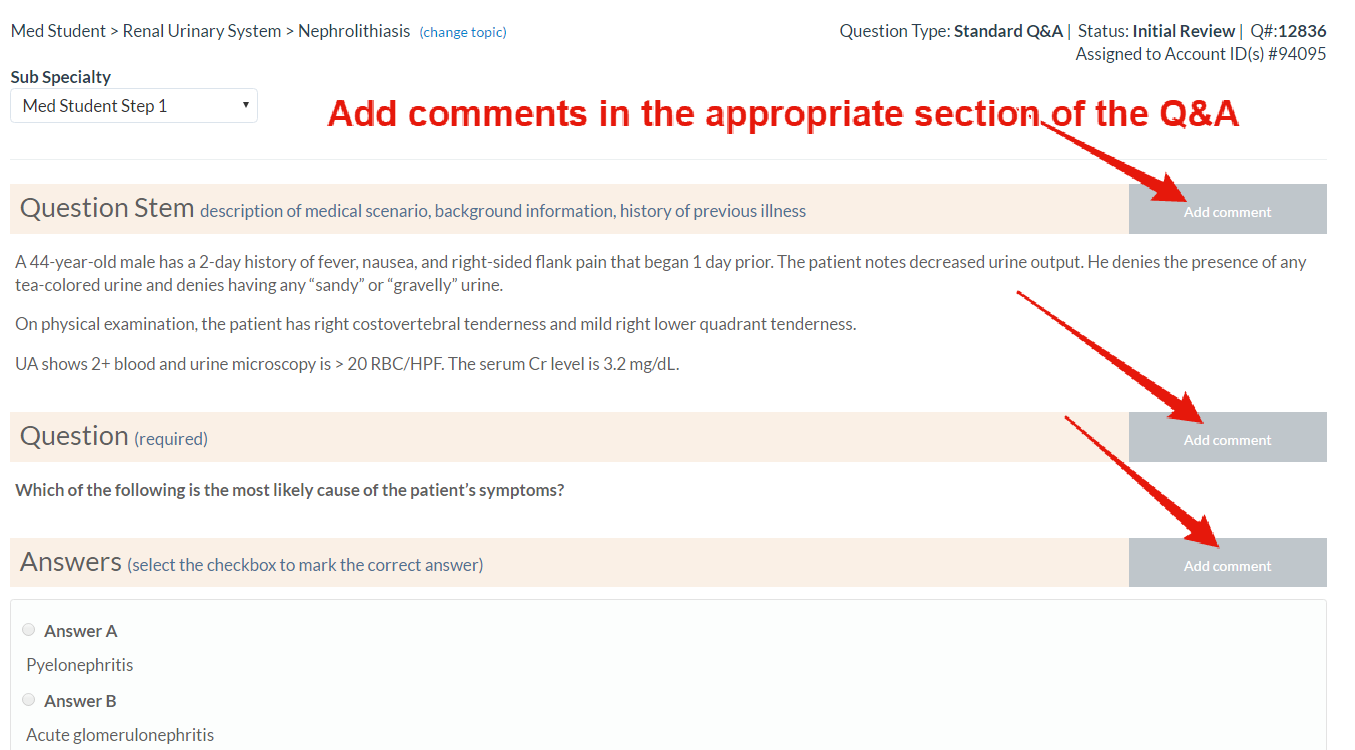
Once you select a question, you'll be taken to the Q&A review page. There are 3 main actions to perform on this page:1. Review the content. Review the Stem, Question, Answers, Explanation, and the Testing Point. In order to assess the quality of the Q&A for content and format, please refer to the Checklist for Reviewing Student Core Q&A’s, Student Core Q&A Writer Specifications Step 1, and the Student Core Writer Specifications Step 2.
You can find “Add comment” tabs on the right side of each section of the Q&A. We encourage you to add as many comments as you deem necessary because this is the primary mode of review for you. You will also have the option to enter general comments about the question before submitting the review.
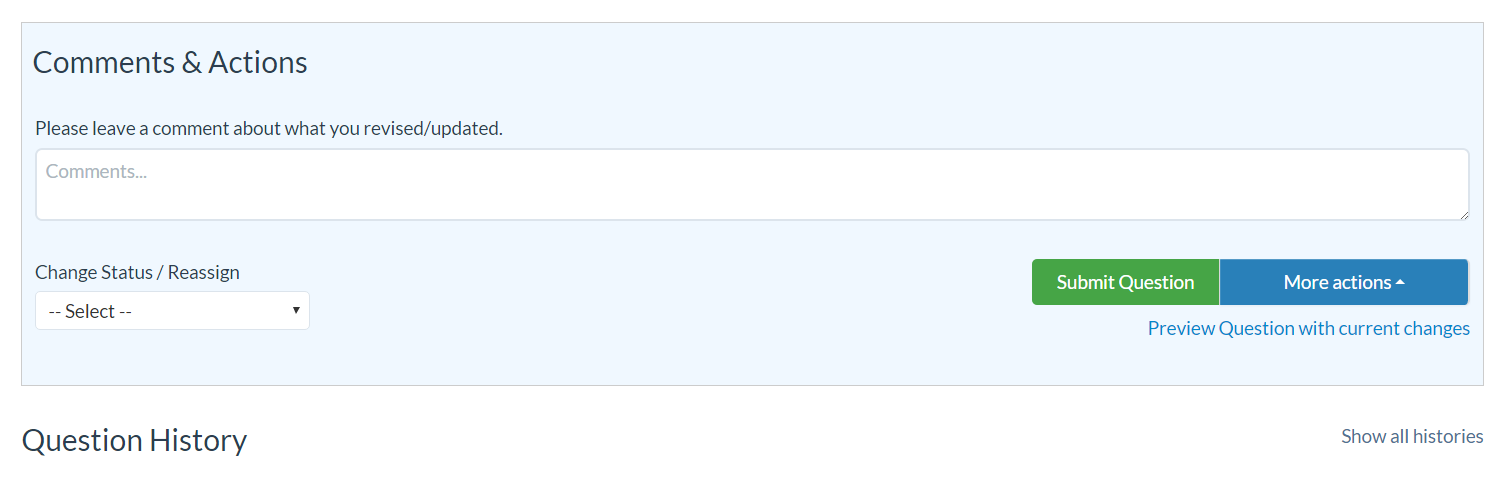

Don’t Review: Use this option if you are unable to review the Q&A for any reason. Make sure to leave a note in the Comments & Actions box explaining why you are unable to review it.
Save (and continue working): This allows you to save the comments you have made so far and continue reviewing the question (We recommend you use this frequently if you are leaving many comments. This ensures you don’t lose your work should your browser tab accidentally close.)
Save & Close: You can save your review and continue it at a later time. You must come back to the question later to complete the review.
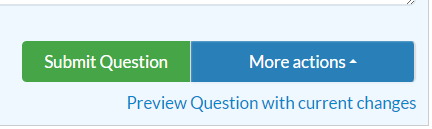
Close: This closes the question without saving any changes you have made. You will need to come back to the question later to complete the review.5. Submit Question. Click on the green Submit Question button once your review is complete. The Q&A is now sent to the author, who will implement your recommendations or make a case against them. Once the author has completed their portion, the Q&A moves on to copyediting and a medical editor. Any content disagreements are addressed by the medical editor.
D. Continue a Review
If you have closed a review without submitting it, you must continue it at a later time. To do this, you again click the “Your reviews” button from the main page.You are taken to the list of questions that are currently assigned to you. You may click on any question here to continue the review.
