Welcome to MedStudy's Online Q&A and Flashcard Editor!
Here you are able to access Q&As and/or Flashcards that are going to expire, hence need to be reviewed to ensure the content is still relevant, accurate, and up to date; the most recent guidelines are referenced; the categorizations are updated to align with the most recent editions of Core; and the format of the Q&A/Flashcard is in accordance with MedStudy's most recent style guide.
A. Log into my.medstudy.com and go to the review page for Q&As
1. Go to my.medstudy.com
2. Log in using your email address and password. If you've forgotten your password, click on Forgot password? This will take you to a Password Recovery page.

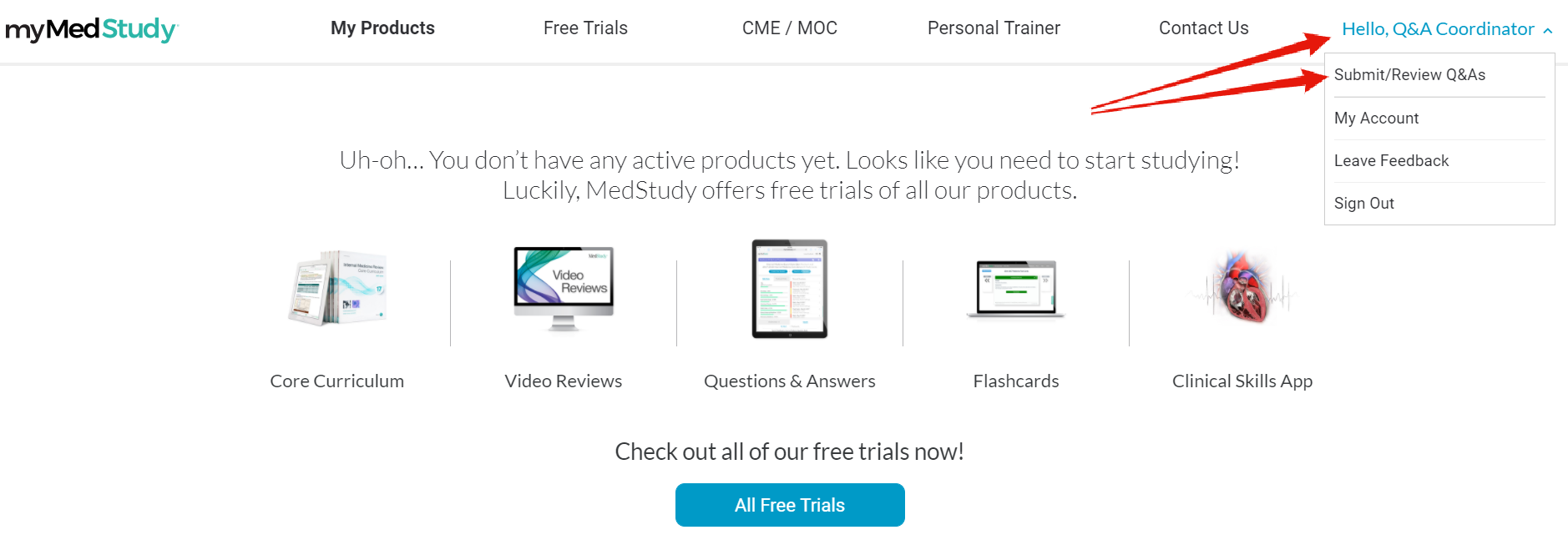
3. On the top right side of the page, select Hello, [your name] to display a drop down selection, and then select Submit / Review Q&As.
3. On the top right side of the page, select Hello, [your name] to display a drop down selection, and then select Submit / Review Q&As.
B. Reviewing your assigned Q&As
1. Click the button labeled Your reviews.
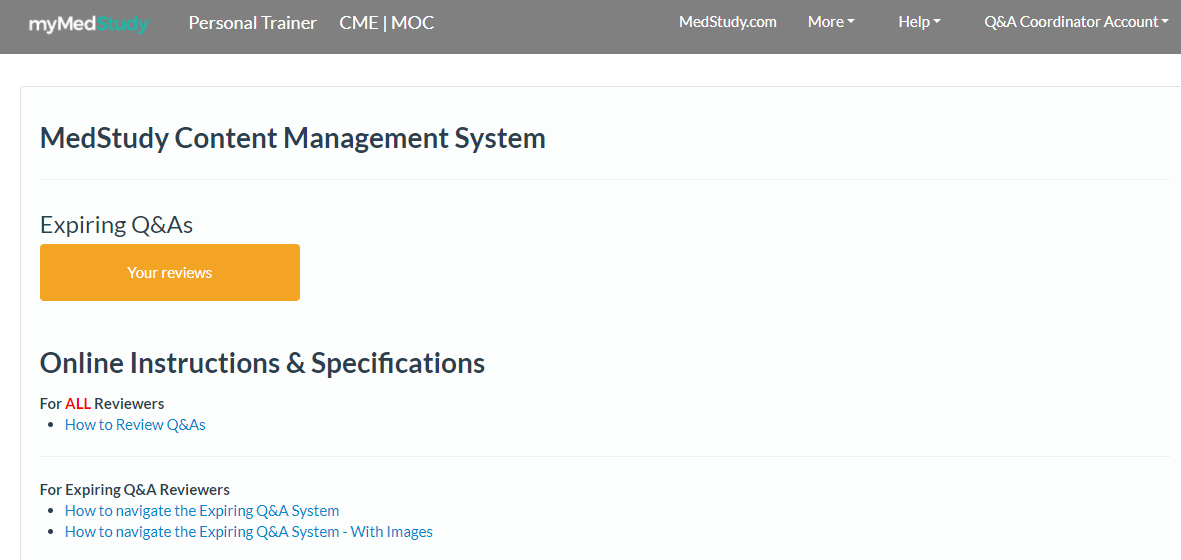
2. A list of expiring Q&As that need to be reviewed and that were assigned to you will appear. On the upper right side of the page, you will see the total number of Q&As waiting to be reviewed.

3. Click on any one of these expiring Q&As to begin your review.
Note: The Q&A will remain assigned to you until you Submit (finished with the review) or Reject it (Q&A worthless; Rare! You can almost always rework any question into a great new question).
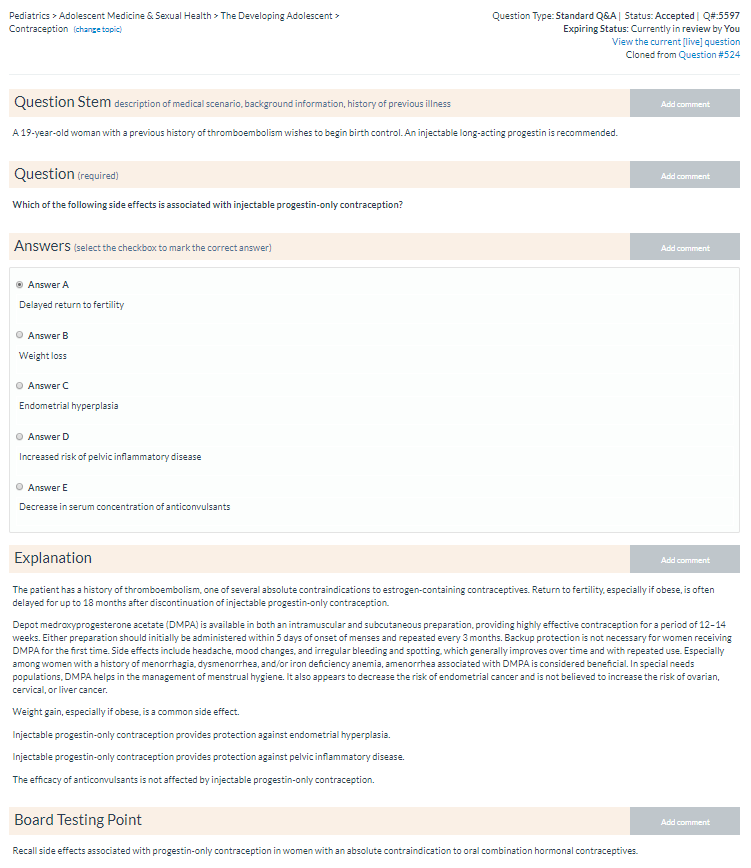
4. Read the stem, question, answer choices, correct answer selection, explanation, and board testing point.Here is a zoomed out version of what you should see; the arrows point to the sections you need to review and update if necessary.
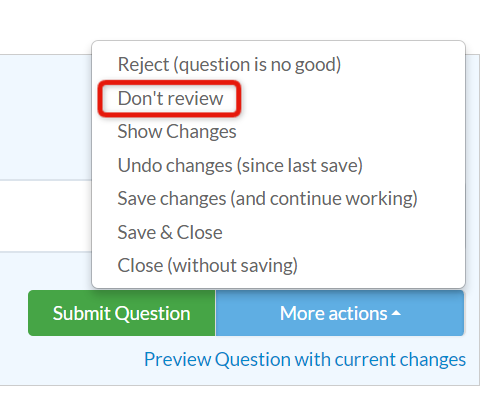
5. If you don't want to review the Q&A, go to More Actions followed by Don't Review. This will remove the Q&A from your list.
6. As needed, make updates to all parts of the Q&A in accordance with the UPDATED instructions on How to Review Q&As. Pay specific attention to guideline updates that may need to be included.
Any guideline updates also need to be listed on the Knowledge Gap Form that you received when you started your review.
7. Important steps in the review process:
a. Select the correct topic
a. Select the correct topic
On the top left side of the page is a listing of the topic > subtopic > subsubtopic. This listing is based on the table of contents in the associated Core curriculum section of the Q&As you are reviewing. You should have received a PDF of your Core section, which you will need to use to decide on the correct topics and subtopics. If the listing is incorrect, click the change topic link to the right of it. This will allow you to select a different primary topic and the most appropriate subtopics until you reach the correct topic level.

Once you have selected the subtopics to the lowest possible level, click the green Select this topic box next to your last selection, which will save all the selections above it.
Note: You will need to drill down to the lowest possible level, or the system will not allow you click on Select this topic! If it's not appropriate to categorize to the lowest possible level, select N/A as a subtopic. If you are unable to find the correct subtopic in the table of contents of the section, select Miscellaneous as the primary topic.
The (view xx existing) comment to the right of the Select this topic box shows the number of Q&As already in this topic or subtopic.

b. Review the Stem, Question, Answer Choices, Explanation, and Board Testing Point
Make updates as needed in accordance with the UPDATED instructions on How to Review Q&As.
At each question area, you will see an Add comment tab icon. You may leave comments for copyeditors here. Subsequent reviewers of this Q&A will also be able to read your comments.

Make updates as needed in accordance with the UPDATED instructions on How to Review Q&As.
At each question area, you will see an Add comment tab icon. You may leave comments for copyeditors here. Subsequent reviewers of this Q&A will also be able to read your comments.

c. Choose from the More actions menu

- Reject - Use this option if the question is outdated or for some reason no longer relevant. This will remove the question from circulation in MedStudy's question bank upon its expiration date. Any rejected questions will be reviewed by an internal MedStudy medical editor.
- Don't Review - Use this option if you decide not to review the question. You may also use this if you feel the question needs to be reviewed by someone with more specialized skills, but please ensure you mention this in the Notes section prior to submission.
- Show Changes - Prior to submission or saving the question, you can view the changes you have made. This will open a small popup showing the differences.
- Undo Changes (since last save) - This will undo changes only since the last time the question was saved. Once you perform this action, you cannot undo it and the changes are lost forever.
- Save Changes (and continue working) - This allows you to save the changes you have made so far and continue reviewing the question. We recommend you use this frequently if you are making many changes or comments, to protect from losing work should your browser tab accidentally close or navigate away.
- Save & Close - You can save your review and continue with it at a later time. You must come back to the question later to complete the review.
- Close (without saving) - This closes the question without saving any changes you have made. You will need to come back to the question later to complete the review.
Once you Submit, Reject, Save & Close, or Close the question, you will return to the Question List View where you originated from. You may start another review here by clicking on another question in the list.
d. Document your actions
When you are finished reviewing the Q&A, scroll down to the Comments & Actions text box at the bottom of the page; type in “Reviewed” and a few words about what you revised/updated. A comment is required here!

e. Submit your Q&A
If the question review is complete, click on the Submit Question button located next to the More actions menu.
1. Once you submit your Q&As, they will be run through iThenticate to ensure originality. After this step, they will move on to copyediting.
d. Document your actions
When you are finished reviewing the Q&A, scroll down to the Comments & Actions text box at the bottom of the page; type in “Reviewed” and a few words about what you revised/updated. A comment is required here!
e. Submit your Q&A
If the question review is complete, click on the Submit Question button located next to the More actions menu.
C. After you submit your Q&A
1. Once you submit your Q&As, they will be run through iThenticate to ensure originality. After this step, they will move on to copyediting.
2. If a copyeditor has a question or needs clarification on a Q&A, it will be returned to you with a note of explanation from the copyeditor. You will be able to see the comments left for you in each section underneath the section title (e.g., Explanation). Please check each section for comments and be sure to address all questions/comments that were left for you before resubmitting your Q&A. You may also leave response comments for the copyeditors here.

Note: Our copyeditors will do their best to be in touch within 30 days of your submittal. However, because of our production schedule, it can take longer than that!

Note: Our copyeditors will do their best to be in touch within 30 days of your submittal. However, because of our production schedule, it can take longer than that!
D. Continue review of a saved and closed Q&A
1. If you have closed a review without submitting or rejecting it, you must continue it at a later time. Once you are logged in, you will again click the Your reviews button from the main page.

You are again taken to the list of questions that are currently assigned to you. You may click on any question here to continue the review. Once you have completed your review, click the Submit question button.
2. If you have already submitted a review and realize you would like to continue working on it, you may do so up until the next reviewer or copyeditor takes the question for their review.
To do so, find the question in the View your review history area. This will open up a list of Q&As (and Flashcards) you have previously submitted and also those that are still in progress.The questions are listed in chronological order, with the most recently reviewed questions at the top.
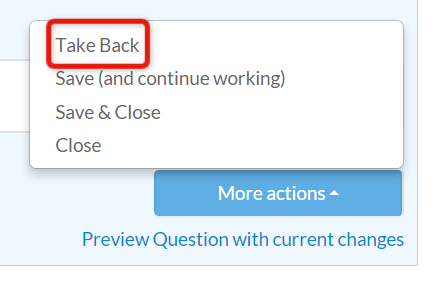
Click on the question you'd like to continue to work on, select More actions, and then Take Back. The question will now be available again under Your reviews until you either resubmit or reject it.


No comments:
Post a Comment